Works with Xero
Xero keeps your books. Focus on Cash tells you what they mean.
Focus on Cash is a financial optics platform. It connects to Xero and reads your reports. It never changes anything in Xero.
Xero
- Records your sales, bills and payments.
- Produces your Profit and Loss and Balance Sheet.
Focus on Cash
- Reads those reports and shows where you are missing cash and profit, in plain English.
- Lets you test a price rise or a new hire in the What If before you commit.
What it reads
What Focus on Cash reads.
We only read. We do not create, edit or delete anything in your Xero file.
We do not keep invoice line items, contact details such as addresses or phone numbers, bank transactions, payments, payroll, payslips or tax returns.
When you connect Xero, we read:
- Your Xero sign-in name and Xero user id, which Xero sends when you connect. We keep the user id with the connection, so we can tell which connections use the same Xero login. We do not keep your name.
- The organisation’s name and basic details.
- Profit and Loss and Balance Sheet reports, and the account list.
- Tracking categories, if you choose to use them.
- The headers of sales invoices, bills and credit notes: the customer or supplier name, dates, status, amounts and what is still owed. These give you customer and supplier figures, such as how quickly customers pay.
How to connect
Connect once, then sync whenever you like.
You sign in on Xero’s own website, so Focus on Cash never sees your Xero password.
-
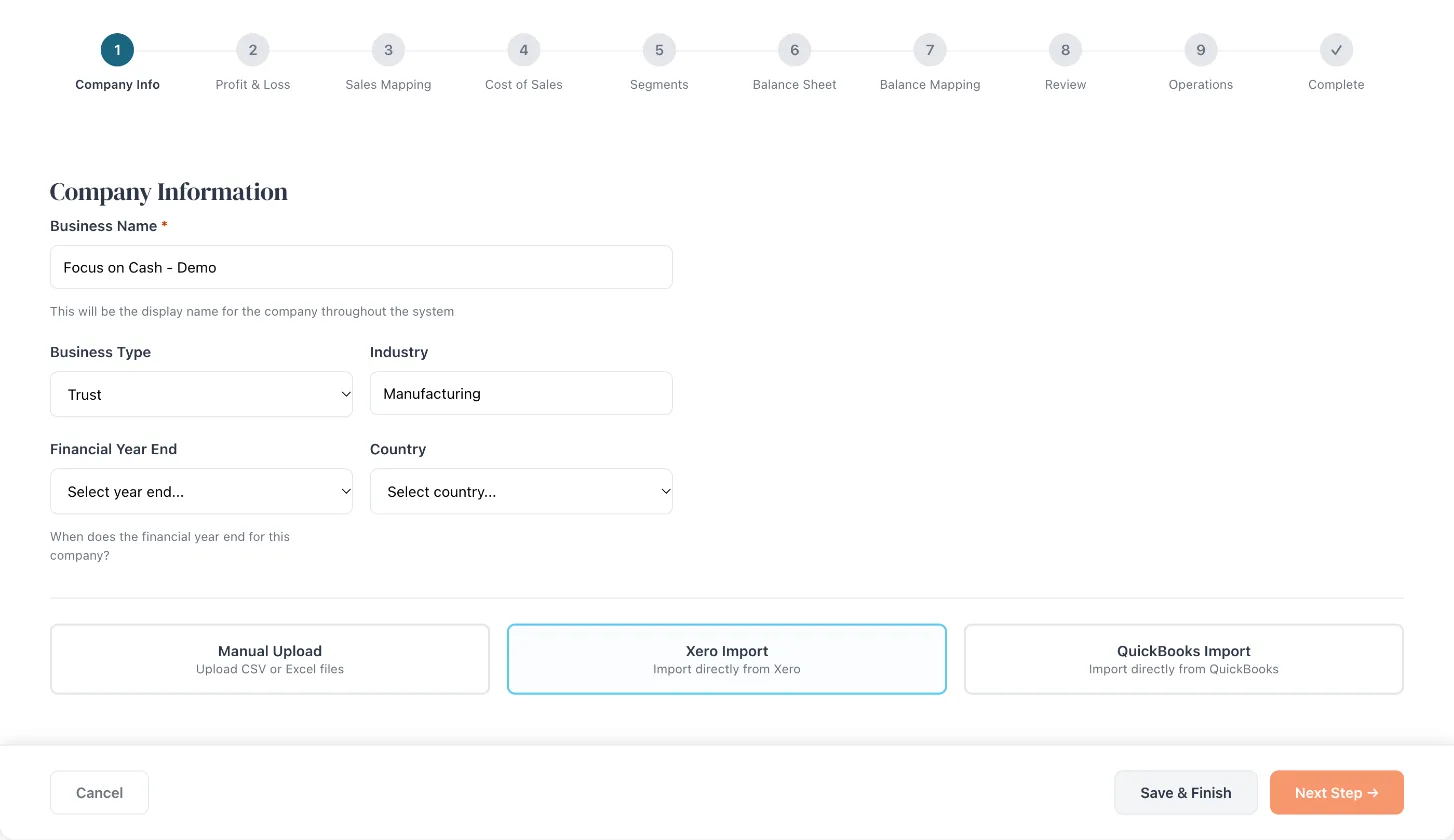
Choose Xero Import
It is on the first setup screen for the business.
-
Click Connect to Xero
Xero asks you to sign in, choose the organisation and approve the connection.
-
Choose how much history
You come back to Focus on Cash and pick the financial years to bring in.
-
Click Import
The Profit and Loss and Balance Sheet come in together, and the analysis is there.
Later, choose Sync from Xero in the settings menu to bring in the latest months. The connection stays open between visits, so you do not sign in to Xero each time.
How to disconnect
Disconnect at any time.
Open the settings menu, choose Edit Data and go to the Profit and Loss step. Click Disconnect from Xero and confirm.
You can also remove Focus on Cash from inside Xero.
What happens when you disconnect
- We ask Xero to cancel our access, so Focus on Cash can no longer read anything new.
- The figures already brought in stay in Focus on Cash until you delete the company or close your account. Deleting a company deletes its data.
- You can connect again later from the same setup step.
For advisors
Connecting a client’s Xero.
Each client company has its own connection. You connect it in that client’s setup, the same way as above.
- Have your client’s permission before you connect their Xero.
- Sign in with a Xero login that can open your client’s organisation.
- If your login opens more than one organisation, check you choose the right one before you approve.
- Fix their chart of accounts once. Later syncs use your choices.
Get started
See your business clearly.
Fill out the form and we will be in touch with next steps. Every plan is billed once a year, with every feature included.
Or email [email protected]